A Pragmatic Guide to Maschinenverordnung

Mit der neuen Maschinenverordnung (EU) 2023/1230, die ab dem 20. Januar 2027 verpflichtend gilt, wird Cybersicherheit zur gesetzlichen Pflicht für Maschinenhersteller.

Die zentrale Botschaft: „Keine funktionale Sicherheit ohne Cybersicherheit.“

Dieser Leitfaden zeigt, wie die Anforderungen in der Praxis umgesetzt werden können – mit einem strukturierten Konzept, basierend auf der Normreihe IEC 62443, ergänzt durch konkrete Werkzeuge, Prozesse und Dokumentationen.

Ziele

  • CE-Konformität durch Cybersicherheitsmaßnahmen sicherstellen
  • Robuste OT-Sicherheitsarchitektur etablieren
  • Erfüllung der gesetzlichen Anforderungen
  • Nachvollziehbare Dokumentation für Audits und Behörden bereitstellen

Relevante MVO-Abschnitte

  • Schutz gegen Korruption (Anhang III, Abschnitt 1.1.9)
  • Sicherheit von Steuerungssystemen (Anhang III, Abschnitt 1.2.1)
  • Technische Dokumentation (Anhang IV, Teil A)

Ablauf und Meilensteine

Das ist zu machen:

  1. Mit dem Gesetzestext vertraut machen
  2. Asset-Inventar erstellen
  3. Risikobewertung durchführen
  4. Maßnahmen definieren und umsetzen
  5. Dokumentation und Nachweispflicht

Bausteine

1. Asset-Inventar

Man kann nur Schützen was man kennt.

  • Inventarliste mit allen sicherheitsrelevanten Komponenten erstellen

2. Risikobewertung

First-things-first. Nicht zu kompliziert denken oder overengineeren. Welche Bedrohungen oder Maßnahme machen für euch am meisten Sinn. Oft fällte eine gleich was an, was einen unter den Nägeln brennt. Das sind die Findings die man benötigt! Und immer daran denken: Security ist ein Prozess.

  • Bedrohungskatalog erstellen
  • Bewertung nach Wahrscheinlichkeit und Auswirkung (vor allem bezüglich Safety)
  • Daraus ergibt sich eine Priorisierung der notwendigen Maßnahmen

Beispiele für den Bedrohungskatalog:

BedrohungAngriffsvektorMaßnahme
Unautorisierter NetzwerkzugriffDirekter Zugriff auf kritische Komponenten durch flache NetzeZugangsbeschränkung durch Firewall mit Deny-by-Default, Implementierung von Firewall-Regeln
Standard-PasswörterAusnutzung von nicht geänderten herstellerseitigen ZugangsdatenSofortiges Ändern aller Default-Credentials, zentrale und sicher Verwaltung
Leicht zugängliche USB-SchnittstellenRansomware-Infektion für externes MediumMedienkontrolle, Schnittstellen deaktivieren

3. Maßnahmen

Technische Maßnahmen

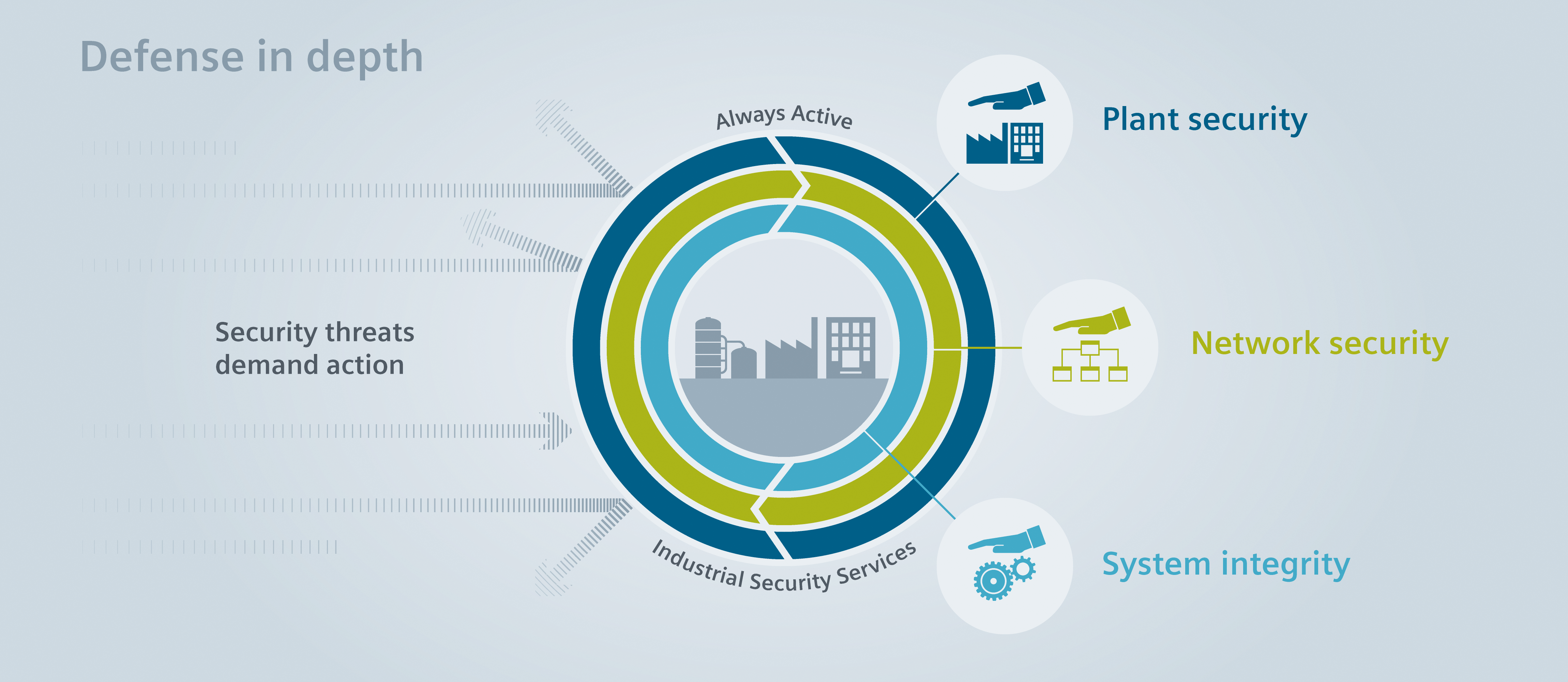
Vorgehensweise nach Defense in Depth (Security by Design & Default). Wir errichten eine Festung mit mehreren Schutzbarrieren. Fällt die erste Mauer, ist trotzdem nicht gleich die ganze Burg eingenommen.

  • Anlagen- und physische Sicherheit
  • Netzwerksicherheit
  • Systemsicherheit
Quelle: siemens.com

Organisatorische Maßnahmen

  • Zuständigkeiten definieren
  • Prozesse definieren oder anpassen

Personelle Maßnahmen

  • Awareness-Trainings
  • Know-how aufbauen

4. Dokumentation und Nachweispflicht

Alle Maßnahmen und Entscheidungen nachvollziehbar dokumentieren.

Erkenntnisse aus der Praxis

  1. OT hat andere Prioritäten – das ist auch bezüglich Security sehr wichtig zu betrachten
  2. Safety ≠ Security – Checksummen allein reichen nicht aus
  3. Dokumentation ist Pflicht – jede Maßnahme muss nachvollziehbar sein
  4. Frühzeitig starten – Cybersicherheit gehört in die Planungsphase
  5. Aufwand skalieren – MVO ist Pflicht, IEC 62443 kann je nach Projektumfang selektiv angewendet werden

Fazit

Die Maschinenverordnung ist kein reines Compliance-Thema – sie ist eine Chance, OT-Sicherheit zu professionalisieren und Vertrauen bei Kunden aufzubauen.

Mit einem klaren Konzept, strukturierten Prozessen und technischer Umsetzung kann Cybersicherheit im Maschinenbau praxisnah und auditfähig realisiert werden.

Machine communication with Scalance S615 without gateway

Today I would like to show you how to set up a Siemens Scalance S615 firewall. This configuration allows you to access a plant network from a company network. You can do this without both networks having the Scalance entered as the default gateway.

Setup

PC 192.168.10.179 (VLAN 2 EXT) NO Gateway
SCLANACE 192.168.1.1 (VLAN 1 INT) and 192.168.10.1 (VLAN 2 EXT)
MACHINE 192.168.1.99 (VLAN 1 INT) NO Gateway

1. NETMAP

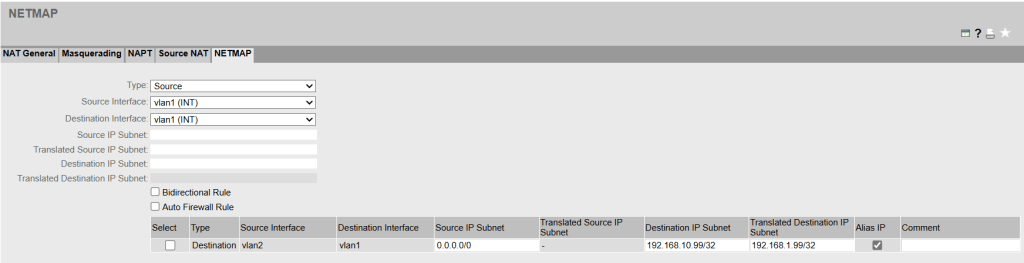
The PC communicates with 192.168.10.99 (Alias IP) from its own network, which is translated using a destination NAT. The machine behind this is 192.168.1.99.

2. Source NAT

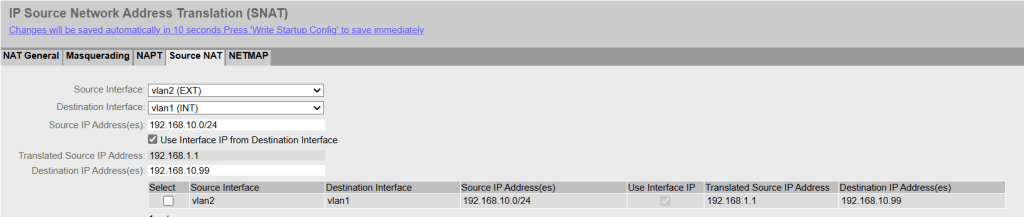
The machine thinks the packet comes from 192.168.1.1 (Source NAT) and can send a response packet without a gateway because it thinks the packet comes from the same subnet.

    3. Firewall Rule

    Don’t forget to set the corresponding entry in the firewall rules. „Auto Firewall Rule“ in the NETMAP can be helpful to automatically create an entry, but with a custom or customized entry the rule can be formulated more specifically.

    Terms

    Announce alias IP addresses

    • Sends a gratuitous ARP to announce the IP address.
    • This happens without an ARP request when creating NAT rules or rebooting the appliance.

    Alias ​​IP

    • NAT IP is registered on the source or destination interface.
    • CAUTION with entire subnets! In combination with „Announce Alias ​​IP addresses,“ each IP address is announced on the network with the MAC address of the router interface. This could produce a network outage.

    BIDIRECTIONAL Rule

    • Enters a second rule from the other direction.
    • This is important if the other side also wants to initiate the connection.

    Links 

    SCALANCE S615 Getting Started 

    SCALANCE S615 Web Based Management 

    NAT mit SCALANCE SC-600/ M-800/ S615 

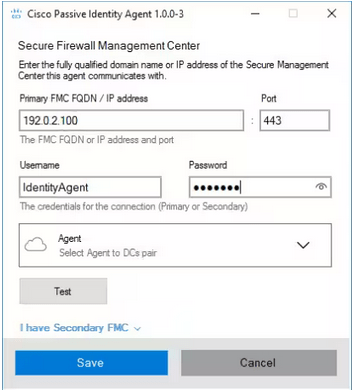
    Cisco Secure Firewall Version 7.6 adds support for a new Passive Identity Agent

    Cisco Firepower version 6.6 was the last release to support the Cisco Firepower User Agent. After that, only ISE or ISE-PIC was supported to get passive user to IP mappings in MS AD environments.

    In current versions of the Secure Firewall Release Notes you can now find the Passive Identity Agent. A reason to be happy! Because the more complex and expensive setups with ISE were not the best choise everywhere.

    Source: cisco.com

    Resources and more information:

    https://www.cisco.com/c/en/us/td/docs/security/secure-firewall/release-notes/threat-defense/760/threat-defense-release-notes-76.html

    https://www.cisco.com/c/en/us/td/docs/security/secure-firewall/management-center/device-config/760/management-center-device-config-76/m_user-control-with-the-passive-identity-agent.html

    Aruba CX Initial Setup

    Initial setup steps of an Aruba CX 6100 switch. The Aruba CX switches come with a very well chosen default setup, there’s not much to do, to be up and running!

    • Factory-Default IP Configuration is set to DHCP
    • SSH or HTTPS to the device IP (from the DHCP-Lease )
      • Console access via the USB-C port also possible
        • Baud rate: 115200 bps
    • Login using the default credentials
      1. admin / no password
      2. Create new password
    • Firmware update
      1. https://asp.arubanetworks.com/
      2. Upload via WebUI => System => Firmware Update
      3. Update takes approx. 5min
    • Loop Protection
      1. Multiple Spanning Tree (MSTP) is enabled by default
    • NTP
      1. pool.ntp.org enabled by default
    • SNMP
      • # conf t
      • snmp-server community MySNMPcommunity
    • VLAN setup example
    # conf t
    
    ! create a new VLAN
    vlan 2
        name DATA
    
    ! assign the vlan as native access vlan on the port range
    interface 1/1/7-1/1/12
        vlan access 2
    
    end
    • Edge-port configuration example
    # conf t
    
    ! enabled transition immediately to the forwarding state (port-fast)
    interface 1/1/1-1/1/14
        spanning-tree port-type admin-edge
    
    ! enable layer 2 loop protection
    interface 1/1/1-1/1/14
        loop-protect
        exit
    
    ! interval after which an interface disabled by loop protection is re-enabled
    loop-protect re-enable-timer 30
    
    end
    • Save configuration
      • IMPORTANT: If you do not save the config, all configuration will be lost after a power cycle of the switch
    • Web-UI
      • „Save Config“ in the menu top-right
    • CLI
      • # write memory

    Verschlagwortet mit

    Dynamic Firewall Objects for AWS and Azure

    How to create a dynamic object with the public ip addresses used by AWS or Azure.

    • For standalone Firewalls SSH into the CloudGen Firewall
    • For managed Firewalls SSH into the Control Center Box Level

    Example command to create a dynamic network object with the IP addresses of the AWS EU-Central-1 region:

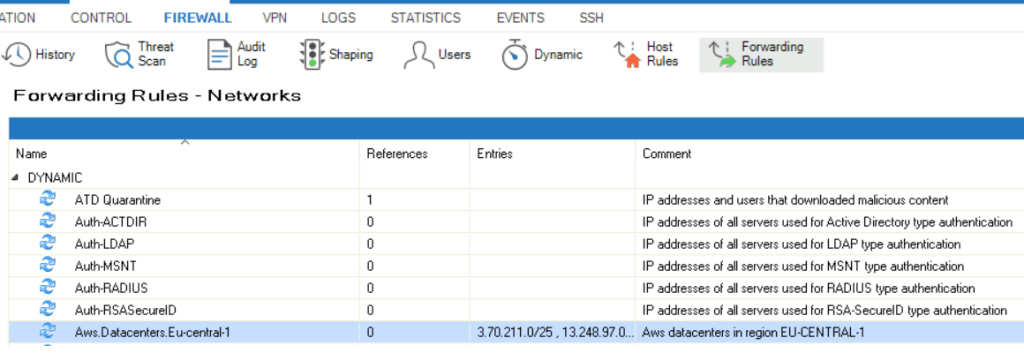
    # external-netobj-tool create Aws.Datacenters.Eu-central-1
    • The dynamic object is automatically updated every hour

    After creation it should look like this:

    Dynamic rule example
    Example of the dynamic object

    How to increase the Firewall Monitor history on a Barracuda CloudGen Firewall

    Issue

    Solution

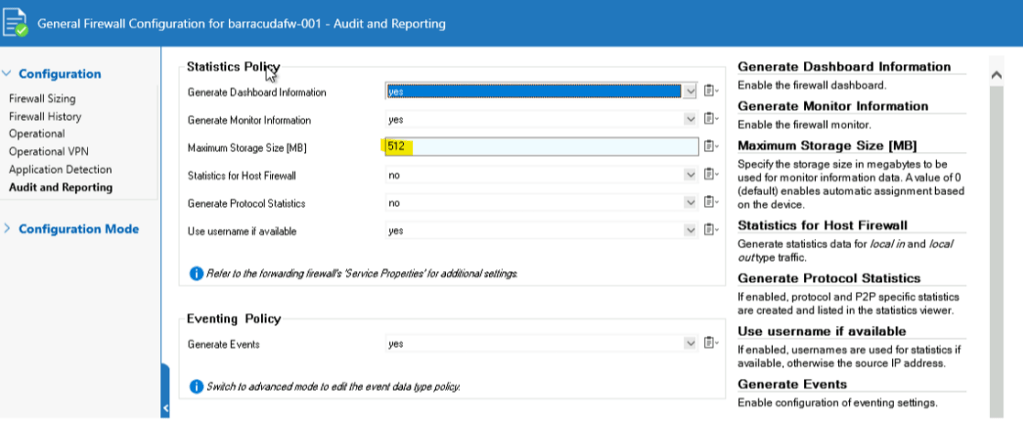
    • Statistics database is stored in
      • /var/phion/appstat
    • Can be increased depending on available disk size
      • Different per appliance
      • Value 0 means automatic adjustment
        • No Barracuda Campus documentation found that describes the mechanism behind it
    • After the changes, keep an eye on the resources in the CONTROL tab
    CONFIGURATION > Configuration Tree > Box > Infrastructure Services > General Firewall Configuration

    Cisco Firepower Release 6.7

    Wichtige Neuerung aus meiner Sicht

    • Manage FTD on a data interface
      • Ein sehr nützliches Feature für Remote Deployments
      • Das Outside-Interface (Data) kann jetzt auch als Management-Interface für die Verbindung zum Firepower Management Center verwendet werden
    • Update the FMC IP address on the FTD
    • AnyConnect module support for RA VPN
    • AnyConnect management VPN tunnels for RA VPN
    • Single sign-on for RA VPN
      • SAML 2.0
      • Super für Azure AD Implementierungen
    • FTD RA VPN now supports LDAP authorization using LDAP attribute maps.
    • Virtual Tunnel Interface (VTI) and route-based site-to-site VPN
    • URL filtering and application control on traffic encrypted with TLS 1.3 (TLS Server Identity Discovery)
    • Configuration rollback
    • Deploy intrusion and file policies independently of access control policies
    • FMC single sign-on for external users

    Vor dem Upgrade gilt es zu beachten, dass der Firepower User Agent ab diesem Release nicht mehr unterstützt wird, und auch einige Hashing- und Verschlüsselungsmethoden, die als nicht mehr sicher gelten, müssen vor dem Update migriert werden.

    Deprecated Features in Version 6.7

    • Cisco Firepower User Agent software and identity source
    • Less secure Diffie-Hellman groups, and encryption and hash algorithms

    Alle Neuerung im Detail findet man unter:

    https://www.cisco.com/c/en/us/td/docs/security/firepower/670/relnotes/firepower-release-notes-670/features.html

    Private-VLAN Trunk-Port Typen

    Standard Trunk Ports

    • Zwischen PVLAN-Switches
    • Überträgt alle VLAN Typen: reguläre VLANs, Primary-VLANs und Secondary-VLANs (Isolated oder Commuity)
    • Beide Switches müssen Private-VLANs unterstützen und gleich konfiguriert sein
    int gi0/24
        switchport mode trunk

    Isolated PVLAN Trunk Ports

    • Zu Non-PVLAN Switches
    • Pakete werden nicht mit dem Primary-VLAN getagged sondern mit dem Secondary-VLAN
    • Auf Non-PVLAN Switches kann dann das Secondary-VLAN, zum Beispiel, als ein gewöhnliches Access-VLAN verwendet werden
    • Um weiterhin eine Trennung der Ports auf einem Non-PVLAN Switch zu ermöglichen könnte „Switchport Portected“ verwendet werden
    int gi0/24
        switchport mode private-vlan trunk
        !switchport private-vlan trunk native vlan 100
        switchport private-vlan allowed vlan 20,30
        switchport private-vlan association trunk 10 20,30
    • If there is no native VLAN configured, all untagged packets are dropped

    Promiscuous PVLAN Trunk Ports

    • Zu Non-PVLAN Router
    • Pakete werden mit dem Primary-VLAN getagged
    • Zu Routern oder Firewalls die keine Private-VLANs unterstützen, kann dann das Primary-VLAN ganz normal als L3 Routing-Interface konfiguriert werden
    int gi0/24
        switchport mode private-vlan trunk promiscuous
        switchport private-vlan mapping trunk 10 20,30
        switchport private-vlan trunk allowed 10,40
    • Alle gewünschten primary (VLAN-ID 10) und regular VLANs (VLAN-ID 40) mit „allowed“-Befehl angeben

    Verfiy

    show vlan
    show interface gi0/24 switchport

    Quellen:

    https://www.cisco.com/c/en/us/td/docs/switches/lan/catalyst4500/12-2/54sg/configuration/guide/config/pvlans.html

    https://www.cisco.com/c/en/us/td/docs/switches/lan/catalyst9200/software/release/16-12/configuration_guide/vlan/b_1612_vlan_9200_cg/configuring_private_vlans.html

    HomeKit-Zugriff über getrennte VLANs durch Multicast Forwarding

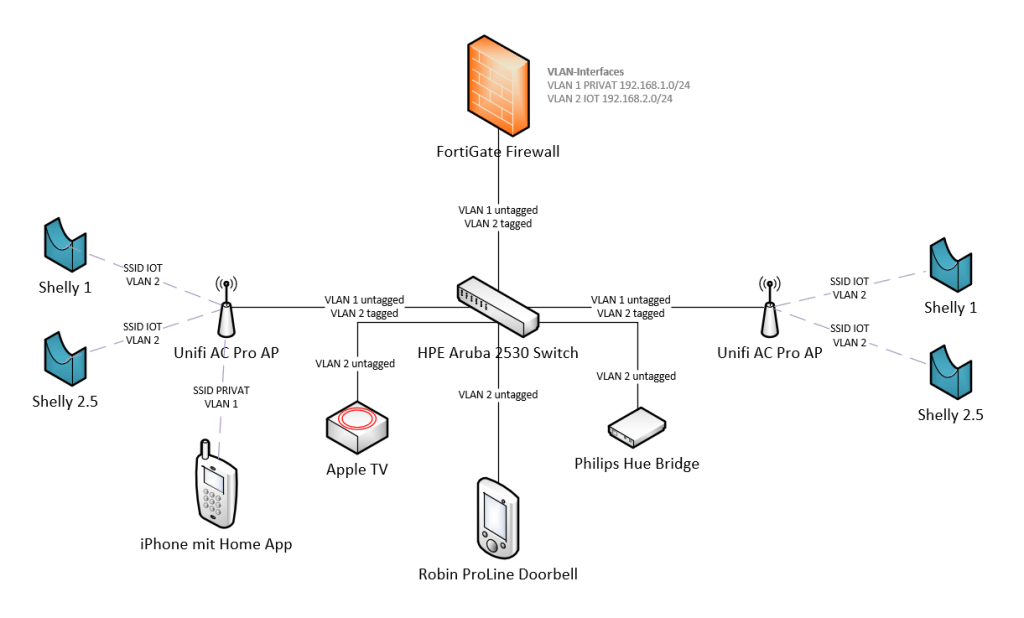
    Geräte

    • Firewall: FortiGate 40F
    • Wifi: UniFi AC Pro Accesspoints
    • Switch: HPE Aruba 2530-8G-PoE
    • Schalter: Shelly Relais mit Open Source HomeKit Firmware
    • Licht: Philips Hue (Bridge + Lampen)
    • Tür: Robin ProLine Doorbell
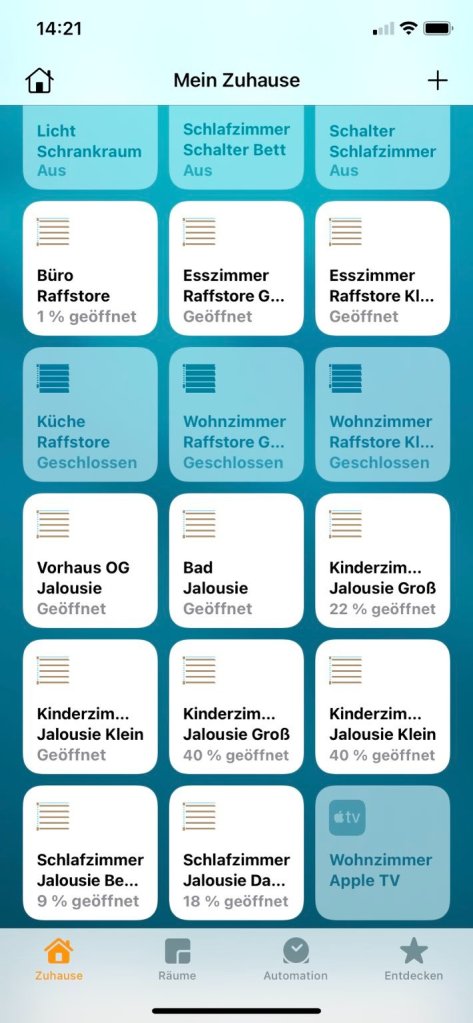
    Home App Zugriff in das segmentierte IoT VLAN

    Aufbau

    Konfiguration

    1. Enable Multicast Forwarding

    Fortigate CLI

    get system settings

    multicast-forward   : enable

    multicast-ttl-notchange: enable

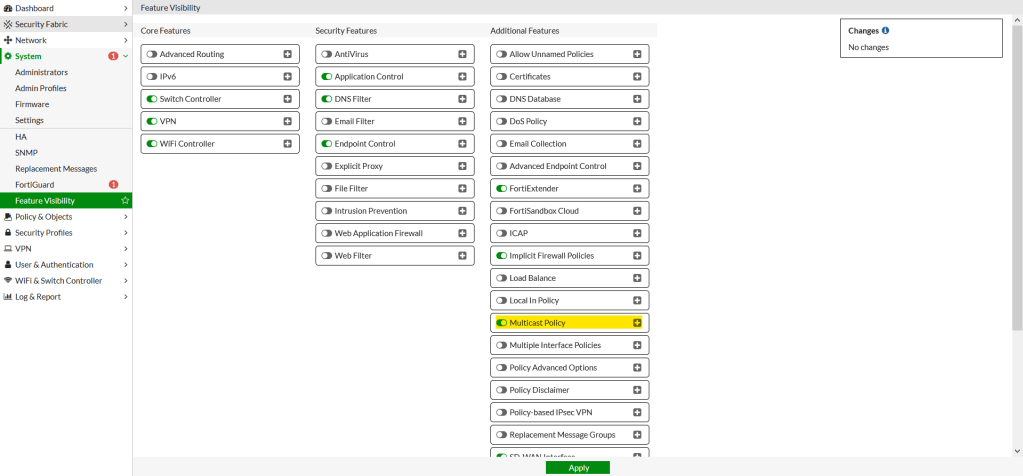
    Fortigate GUI

    • „Multicast Enhancement“ IGMPv3 im UniFi Controller muss nicht aktiviert werden, wenn Multicast Forwarding auf der ForitGate verwendet wird

    2. MultiCast Policy

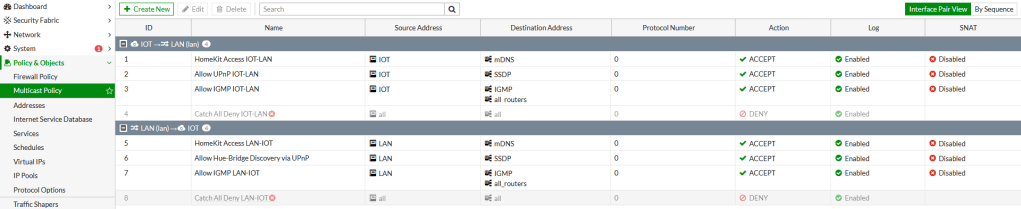
    • Multicast von und zu VLAN 1 (LAN / PRIVAT) und VLAN 2 (IOT)
    • mDNS spielt bei der HomeKit Kommunikation eine wichtige Rolle
    • Catch All Regeln zum Troubleshooting aktivieren

    3. Firewall Policy

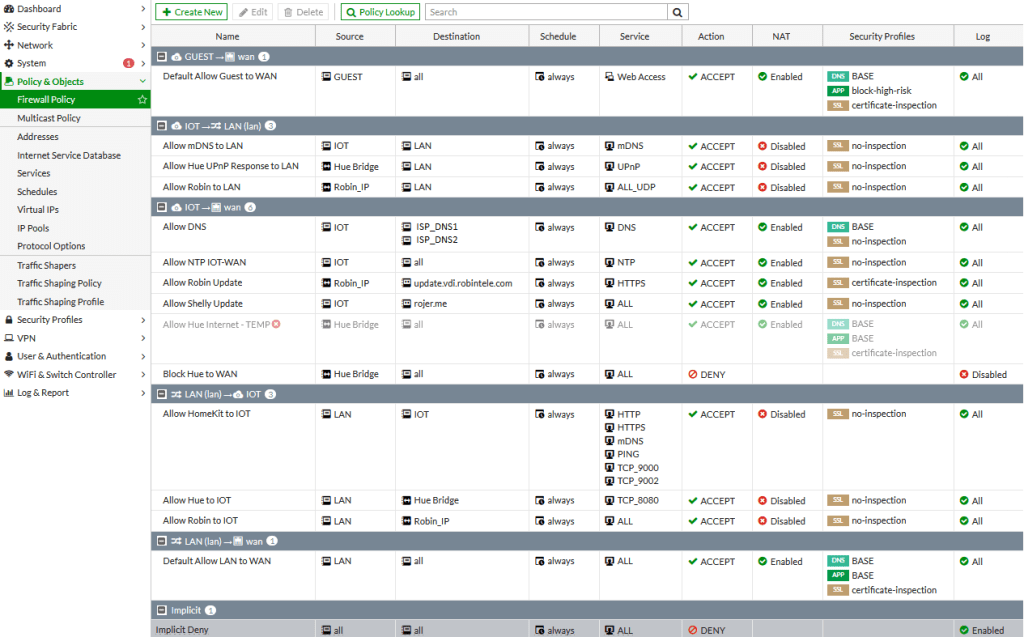
    • Firewall Regeln zwischen den Netzen und Geräten
    • Die verwendeten Ports habe ich meistens über das Firewall-Log herausgesucht

    Hinweise

    • Wenn vorhanden: vorab Apple TV ausschalten um sicher zu gehen, dass die HomeKit-Geräte nicht über das Internet mit der Apple TV Box als HomeKit-Zentrale kommunizieren
    • Wichtig: Wenn man mehrere iOS Geräte im Netzwerk hat kann es sein, dass das Gerät zum Hinzufügen in der Home App auf dem anderen erscheint!

    Probleme

    • Robin Klingel hängt bzw. ist verzögert und sendet keine Benachrichtigung aufs Smartphone
      • Workaround: Neuaufbau der IPv4 Sessions durch öffnen der Home App
        • danach funktioniert die Robin Doorbell wieder normal
      • Test: Robin Doorbell im VLAN 1 behebt die Probleme
      • To Do: Das HomeKit-Protokoll baut ein eigenständiges IPv6 Kommunikationsnetz auf. Durch die Trennung wird nur IPv4 über die Firewall geroutet. Eine zusätzliche IPv6 Konfiguration der Firewall könnte das Problem lösen.

    Troubleshooting

    Logging

    FortiGate GUI => Log & Report => Multicast Traffic

    FortiGate GUI => Log & Report => Forward Traffic

    Debugging

    FortiGate CLI# diagnose sys mcast-session list

    Packet Capture

    FortiGate GUI => Network => Packet Capture

    Links

    https://docs.fortinet.com/document/fortigate/6.4.4/administration-guide/968606/configuring-multicast-forwarding

    https://kb.fortinet.com/kb/documentLink.do?externalID=FD45560

    https://medium.com/@gepeto42/using-homekit-devices-across-vlans-and-subnets-aa5ae1024939

    Komisches VLAN Verhalten beim Cisco Catalyst 9800 Wireless Controller

    Bei der Durchsicht der Cisco Catalyst 9800 Wireless Controller Dokumentationen bin ich auf eine sehr interessante Einstellung gestoßen, die ich mit euch teilen möchte.

    Im „Policy Profile“ unter „Access Policies“ gibt es ein Feld zur Einstellung des VLANs. So weit, so klar. Aber jetzt wird es spannend: Hier kann man nicht nur die VLAN-ID konfigurieren, sondern auch einen VLAN-Namen! Und je nachdem was eingestellt wird, verhält sich die Zuweisung anders.

    Access Policies
    (Bild: Cisco)

    Cisco erklärt es so:

    The behavior is different depending on the AP mode. For an AP in local mode/Flex Central switching:

    ●      Specifying vlan-name = default, client is assigned to VLAN 1

    ●      Using vlan-id 1, a client is assigned to the wireless management VLAN

    There is a warning to remind a user of this.

    For an AP in FlexConnect local switching mode:

    ●      Specifying vlan-name = default, client is assigned to VLAN 1

    ●      Using vlan-id 1, a client is assigned to the FlexConnect native VLAN

    By default, if the user does not configure anything under the policy profile, the WLC assigns vlan-id 1 so clients will use the wireless management VLAN in local mode and the AP native VLAN for FlexConnect.

    Quelle: https://www.cisco.com/c/en/us/products/collateral/wireless/catalyst-9800-series-wireless-controllers/guide-c07-743627.html#Networkcontrollersettings

    Ich hoffe ich konnte euch hiermit ein paar graue Haare, für das nächste Wireless Controller Deployment, ersparen! Happy networking!